01 / SELECT & DELETE
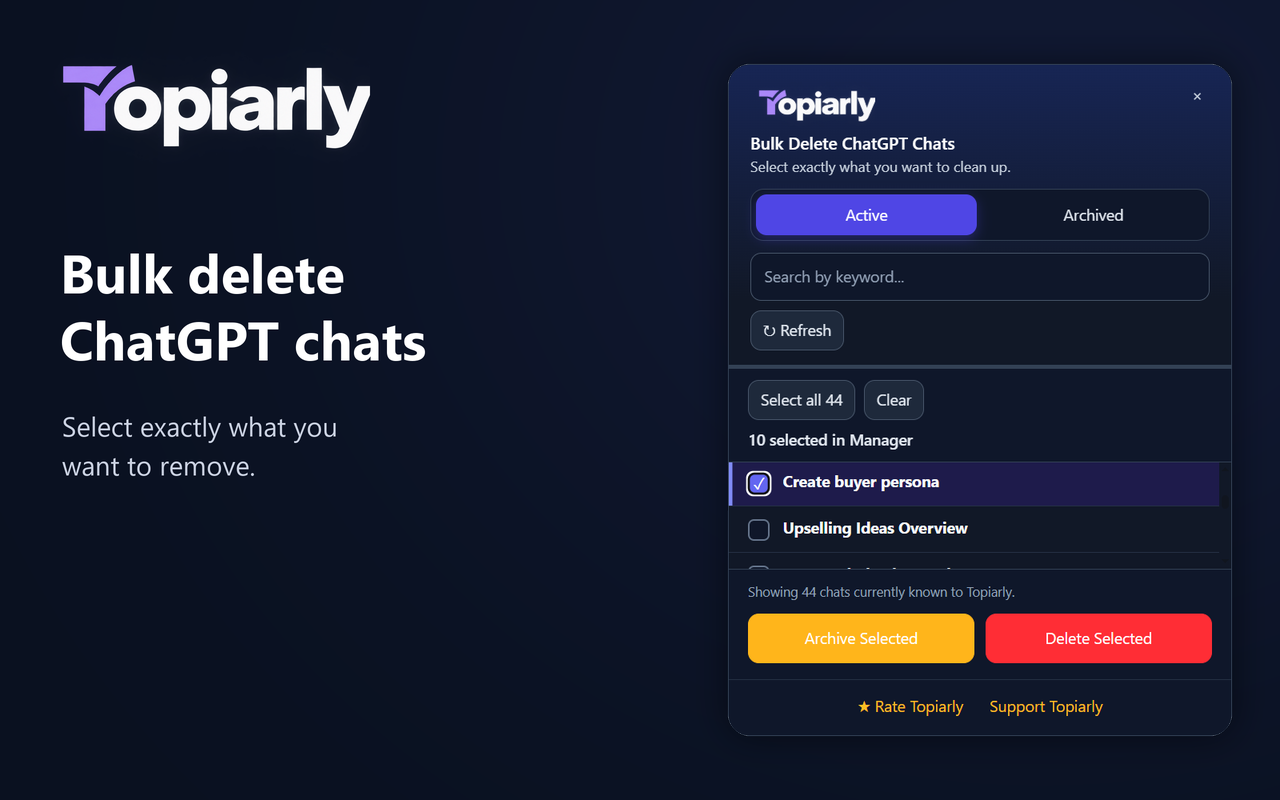
Bulk select & delete
Select individual chats, multiple chats, or the loaded list, then delete the conversations you choose.

CHROME EXTENSION / CHATGPT CONVERSATION MANAGER
Choose chats directly in the ChatGPT sidebar with Quick Select, or search and select them in the Topiarly Manager. Archive, unarchive, or delete the conversations you choose.
Free Chrome extension · English & Spanish
WATCH THE DEMO
Quick Select in the sidebar. Search and selection in the Manager. You choose what happens next.
Playing the demo connects to YouTube. Watch on YouTube ↗
LESS REPETITION. MORE CONTROL.
When your ChatGPT conversation history grows, finding and cleaning up old chats one at a time becomes slow. Topiarly gives you one place to search your conversations, select the chats you want to manage, and take bulk actions.
Bulk delete ChatGPT chats you no longer need, archive conversations you want to keep, or restore archived chats when you need them again.
Instead of scrolling through your ChatGPT history and managing every conversation individually, Topiarly turns the process into a faster, more organized workflow.
CORE CAPABILITIES
01 / SELECT & DELETE
Select individual chats, multiple chats, or the loaded list, then delete the conversations you choose.
02 / ARCHIVE & RESTORE
Archive selected conversations, browse archived chats, and restore selected conversations when needed.
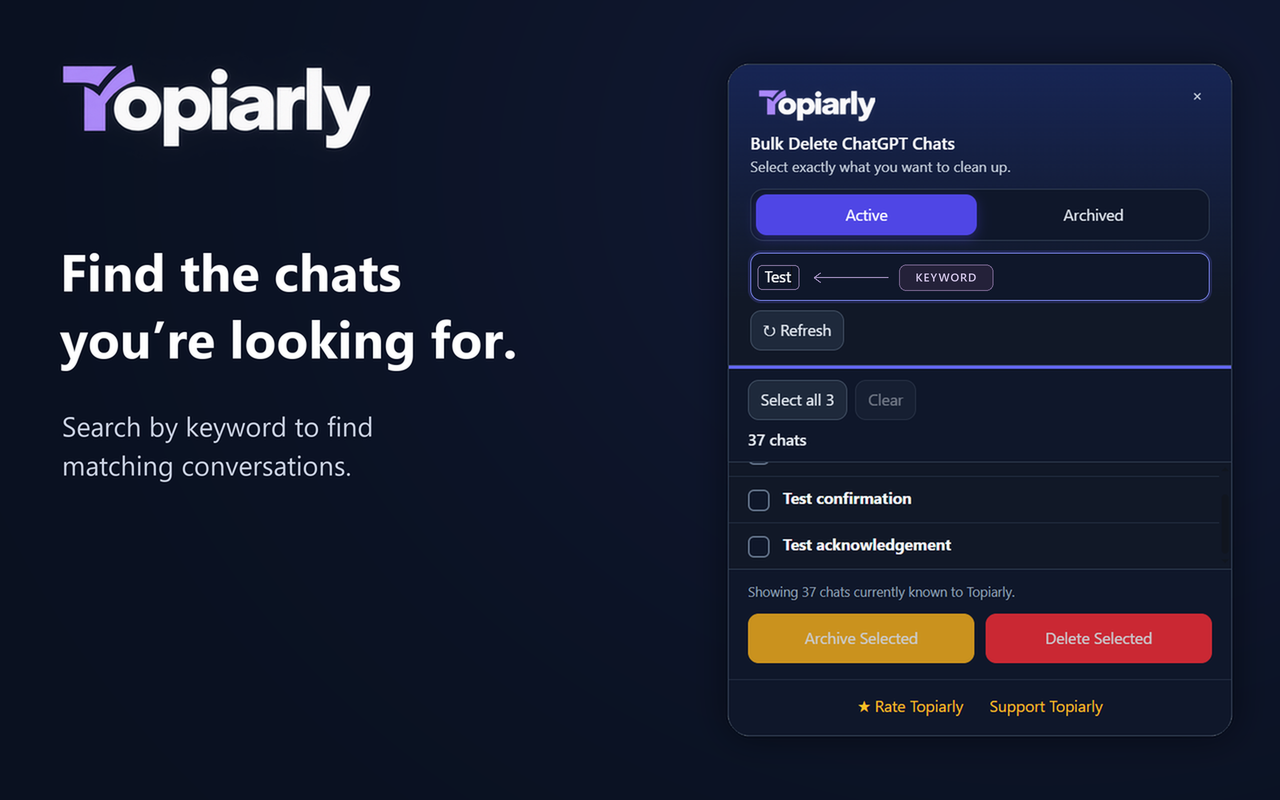
03 / SEARCH
Search loaded conversation titles by keyword inside the dedicated Manager panel.
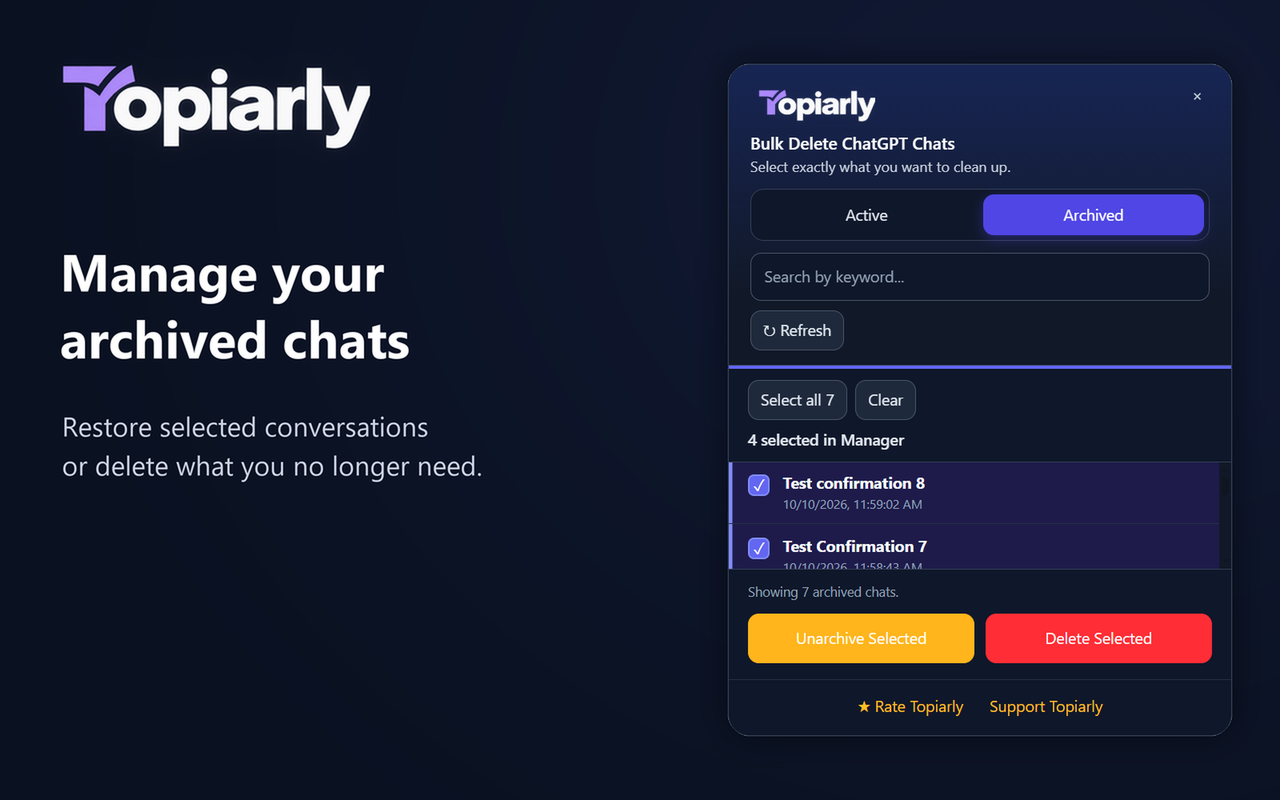
02 / ARCHIVE & RESTORE
View archived conversations, restore selected chats with bulk unarchive, or delete conversations you no longer need.
Unarchiving brings an archived chat back. It does not recover a deleted conversation.
03 / SEARCH YOUR HISTORY
Find old ChatGPT conversations without scrolling through your entire history. Search loaded conversation titles by keyword to quickly narrow the list and find the chats you need.
Once you find them, select individual conversations or multiple matching chats and choose what to do next.
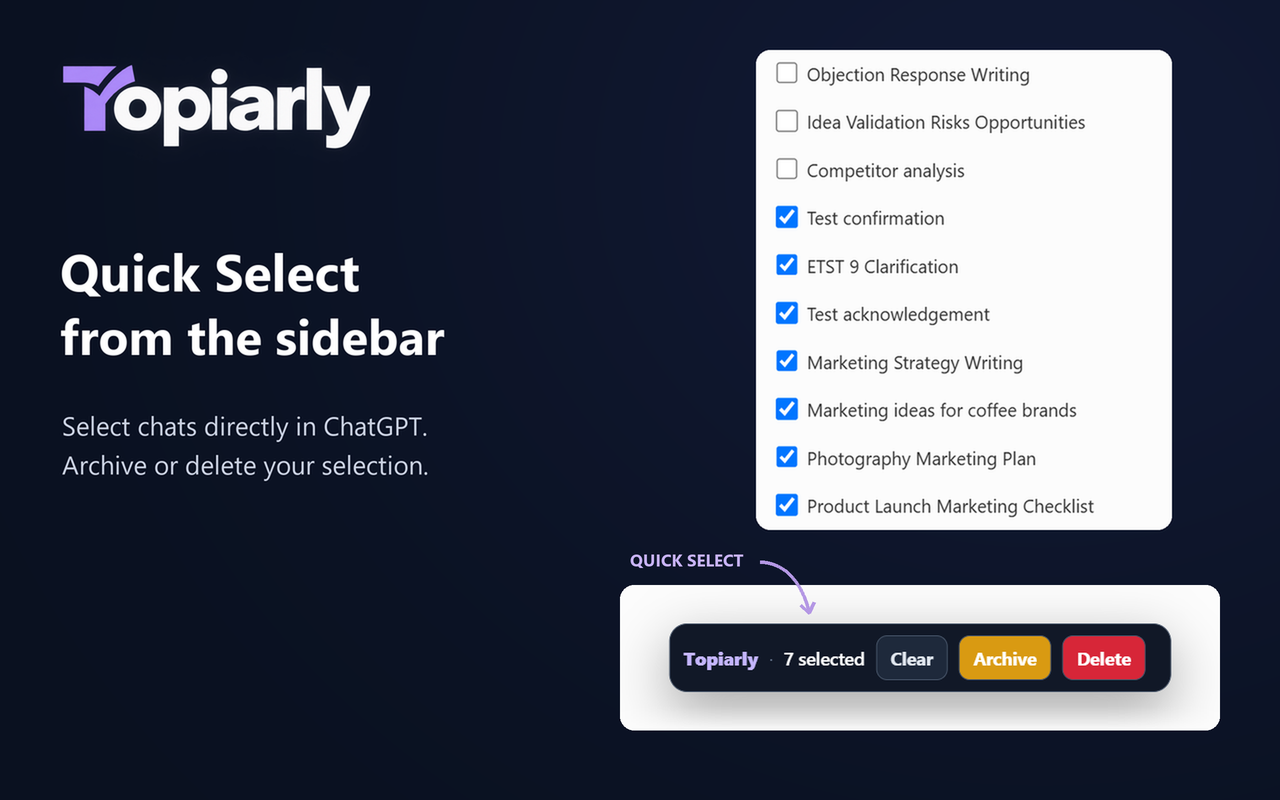
QUICK SELECT / CHATGPT SIDEBAR
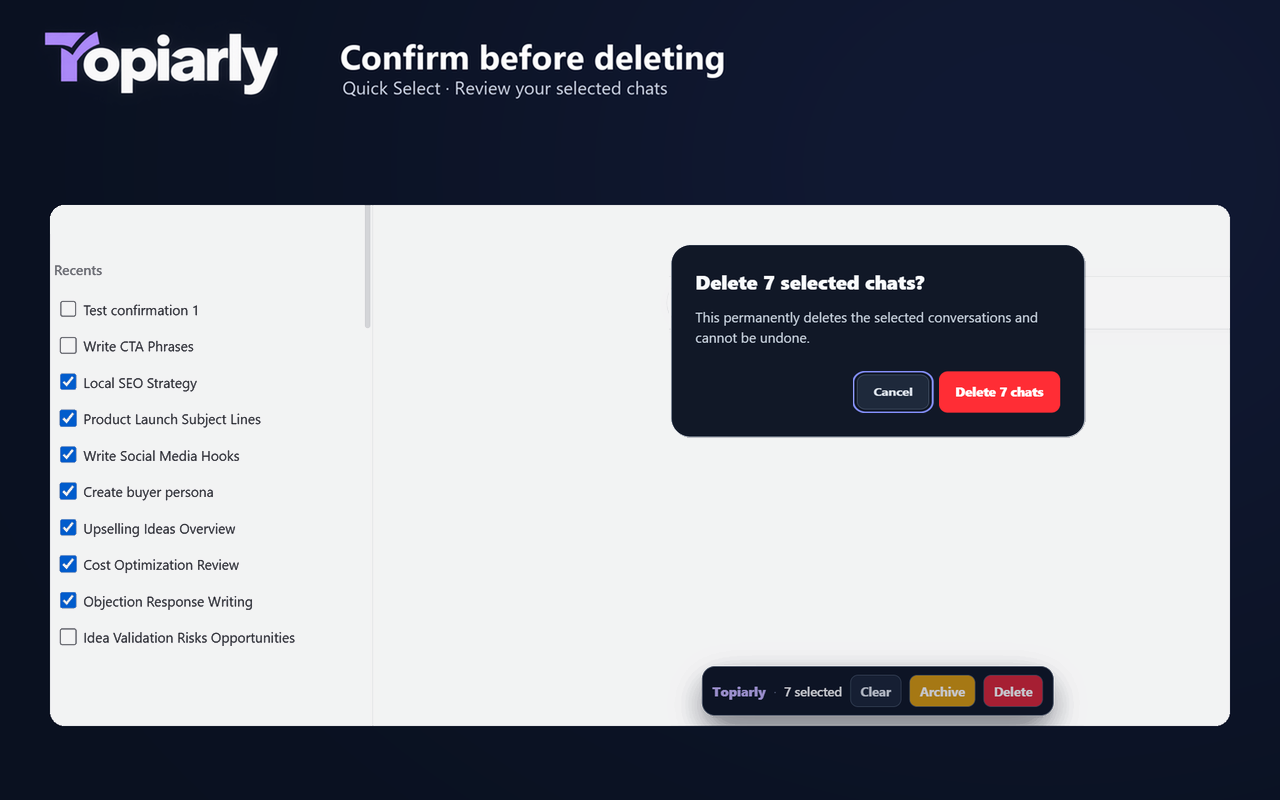
Use the checkboxes in the ChatGPT sidebar to choose conversations. The Quick Select action bar shows your selected count and lets you clear, archive, or delete your selection.
Quick Select and the Manager have separate selections. Review the selected count before taking action.
DELETE WITH CONFIRMATION
Both Quick Select and the Manager show a confirmation dialog before deleting. Check the selected count, then confirm when you are ready—or choose Cancel.
Deletion is permanent. Archive chats instead if you may need them later.
GET STARTED
Install Topiarly, then open ChatGPT in desktop Chrome and sign in.
Use Quick Select in the ChatGPT sidebar, or click the Topiarly extension icon to open the Manager.
Choose chats in the sidebar, or search conversation titles and select chats inside the Manager. Each has its own selection.
Archive or delete your selection. Use the Manager’s Archived tab to unarchive chats. Review the count and confirm before permanent deletion.
PRIVACY
Topiarly works locally in your browser — not through a Topiarly backend.
Topiarly uses your existing authenticated ChatGPT session only to load your conversation list and perform the actions you request. Your ChatGPT conversations and session credentials are not sent to or stored on an external Topiarly server.
Search, selection and conversation management happen from the extension in your browser, so you can manage your ChatGPT history without creating a Topiarly account or uploading your conversations to us.
Quick Select uses checkboxes directly in the ChatGPT sidebar and its own action bar. The Manager is a separate panel where you can search conversation titles, browse active or archived chats, and make a separate selection.
Yes. Topiarly lets you select multiple ChatGPT conversations and delete the selected chats in bulk.
While signed in to ChatGPT, select chats directly in the sidebar with Quick Select, or open the Manager to search and select conversations there. Choose Delete in Quick Select or Delete Selected in the Manager, review the selected count, and confirm when you are ready. Choose Cancel to keep your chats.
Yes. Select individual chats, multiple chats, or the relevant loaded list. Review which conversations are selected before deleting.
Yes. Archive selected conversations, then browse archived chats and unarchive the ones you want to restore to your active history. Unarchiving does not recover deleted chats.
Yes. Search conversation titles to narrow down the conversations in your loaded ChatGPT history.
No. ChatGPT session credentials and conversation data are not transmitted to an external Topiarly server. Topiarly uses your existing authenticated ChatGPT session in your browser to perform requested actions. Read our Privacy Policy for details.
Topiarly does not provide recovery of deleted chats. Treat deletion as permanent. Archive conversations instead when you may want them later.
MANAGE THE CHATS YOU CHOOSE